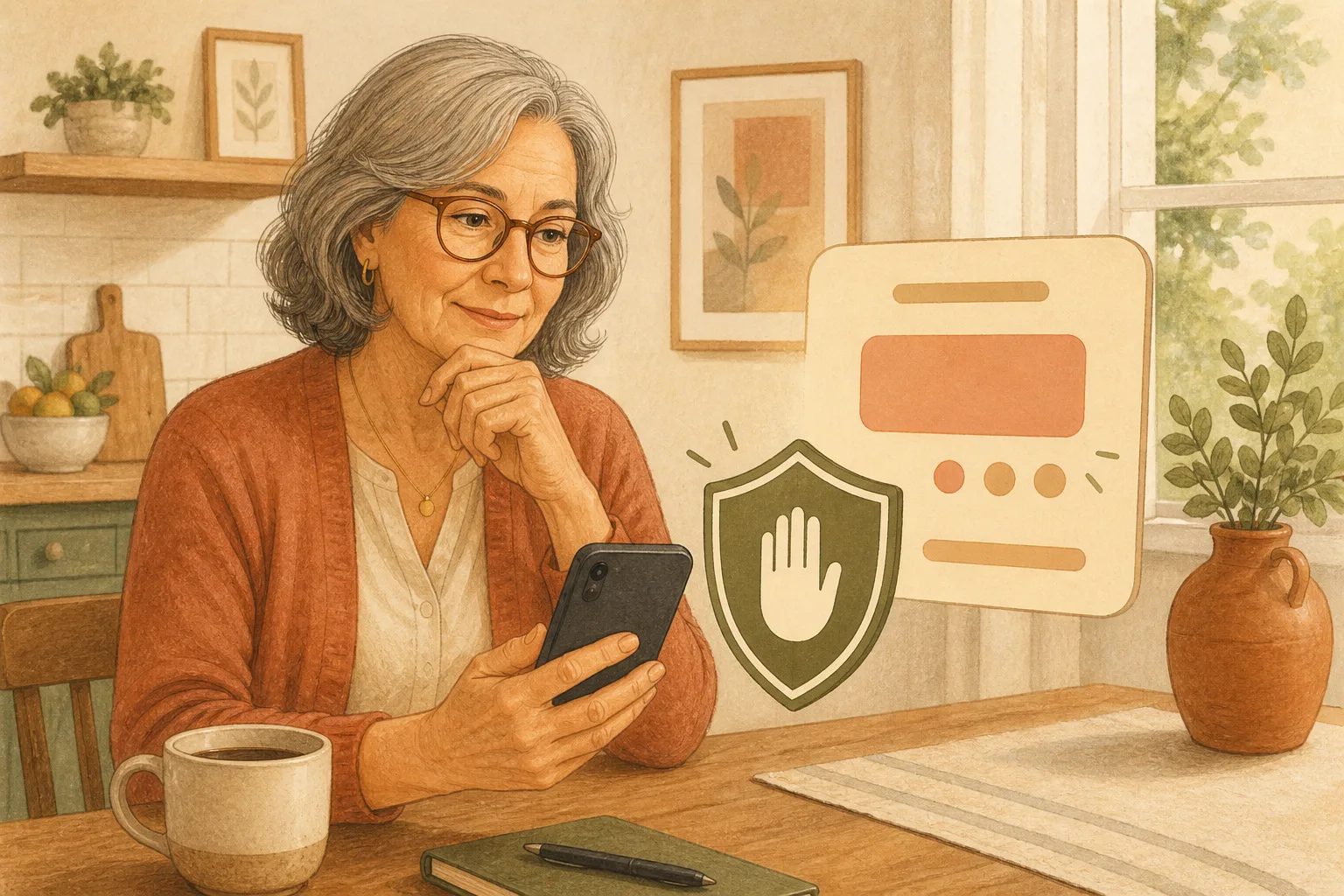
Say a caller claiming to be your bank has you looking at your banking app, telling you to move money "right now" before more is stolen. Your hands are shaking a little. Two-factor authentication (the extra code your bank texts you) does not help here, because you would be the one tapping Send.
I only found this setting last week myself. Here's how to turn on iPhone Impersonation Risk Detection so a supported app can slow that moment down.
The one switch worth flipping today
On an iPhone running iOS 27, go to Settings → Privacy & Security → Impersonation Risk Detection, then turn on Share with App Developers. You may need to sign in to the App Store with your Apple Account first.
That is the whole setup. The catch: if you do not see the menu, check Settings → General → Software Update. Older iOS versions do not have it.
What the setting actually does
Impersonation Risk Detection is Apple's name for an on-device check. When you try a sensitive action in a supported third-party app — a payment or a password change — the app can ask your iPhone for a risk level. Apple says the app gets only that level, not the private details behind it.
The three levels are Unknown (no suspicious signs found, which Apple says is not a green light), Medium, and High. The app then decides whether to warn you, delay the action, or ask you to verify who you are.
Apple also says the analysis stays on the phone. It does not read your Photos, Messages, or Mail to generate the score.
The limitation that surprised me
This is not a magic shield on every app. Apple has not published a list of supported apps, so turning the switch on does nothing until a bank, wallet, or similar app actually uses it. After a few days, open the same Settings screen and look at Recent Activity to see whether any of yours have asked.
And if a caller tells you to turn this off, hang up. Apple says changes can take up to 24 hours on purpose, because a scammer cannot wait that long. Apple also says it will never ask you to disable a security feature on your device or account.
This pairs with habits you may already have: screening unknown callers, the 10-minute scam-call setup, and spotting a Social Security impersonation call.
Flip the switch once, then keep using the number on your real statement whenever anyone claims to be your bank.
Official sources
- Apple Support: Recognize and avoid social engineering schemes including phishing messages, phony support calls, and other scams
- Apple iPhone User Guide: Use Impersonation Risk Detection