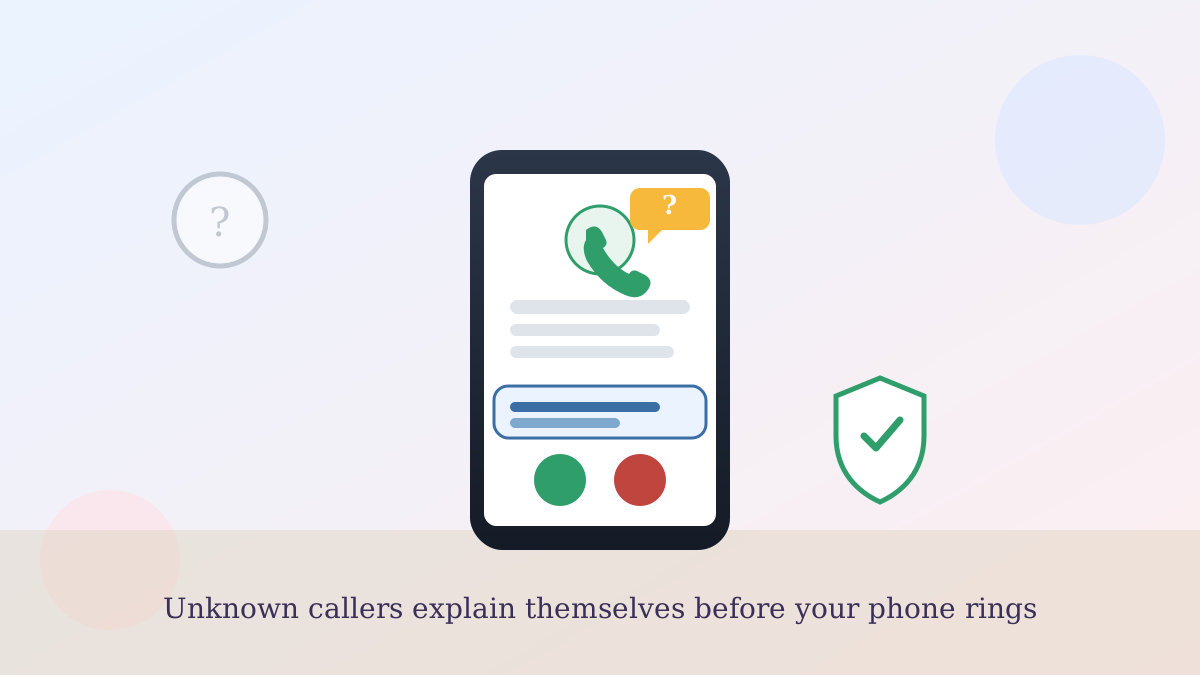
Say an unfamiliar number flashes on your iPhone. Could be your pharmacy with a refill question. Could be a robocall about a car warranty you don't own. Normally you'd have to guess and answer to find out.
There's a newer setting that skips the guessing. It's called the iPhone Call Screening Ask Reason for Calling feature, and it makes unknown callers explain themselves before your phone ever rings.
The one step worth doing right now
Here's the useful part, so let's get it out of the way first: go to Settings → Apps → Phone, and under call screening, choose Ask Reason for Calling. That's it — two taps and you're set up.
Once it's on, any call from a number not in your contacts gets asked, before it reaches you, to say who they are and why they're calling. You'll see that answer as a live transcript on your screen and can decide, in real time, whether to pick up.
How it's different from Silence Unknown Callers
If you've used the older Silence Unknown Callers setting, you know the tradeoff — it sends every unrecognized number straight to voicemail, no questions asked. Safe, but you also lose calls from your doctor's new office or a delivery driver.
Ask Reason for Calling is more like a polite gatekeeper than a locked door. Legitimate callers get a chance to identify themselves right then, and you still get to answer if it's real. Robocalls, which mostly can't respond to a spoken prompt at all, tend to just hang up.
What I noticed testing it
I turned this on last week myself, mostly out of curiosity. A scam call about an "unpaid toll" got asked for its reason, went dead silent for two seconds, then disconnected — never even showed a transcript. A real call from my dentist's office, on the other hand, showed "Sarah, calling about your appointment" before I even picked up.
One limitation worth knowing: it only screens calls, it can't screen text messages, and it needs a recent iOS version, so if you don't see the option under Settings → Apps → Phone, check Settings → General → Software Update first.
Where to find it if it's missing
On older iPhones, or if your carrier routes calls a bit differently, this option can be tucked under Settings → Phone instead of Settings → Apps → Phone. Either way, look for "Silence Unknown Callers" or "Call Screening" and you'll find Ask Reason for Calling sitting right next to it.
It pairs well with other habits, too — if you've already set up your carrier's free scam-call blocking app, this just adds a second, smarter layer on top.
A quieter phone, without missing the calls that matter
Between this and letting your iPhone wait on hold for you, your phone is quietly doing more of the annoying filtering work it used to leave entirely to you. If you're also getting odd texts about tolls or deliveries, our guide on spotting the fake unpaid toll text covers that angle too.
Turn it on today, and the next unknown number that calls will have to explain itself before you do.