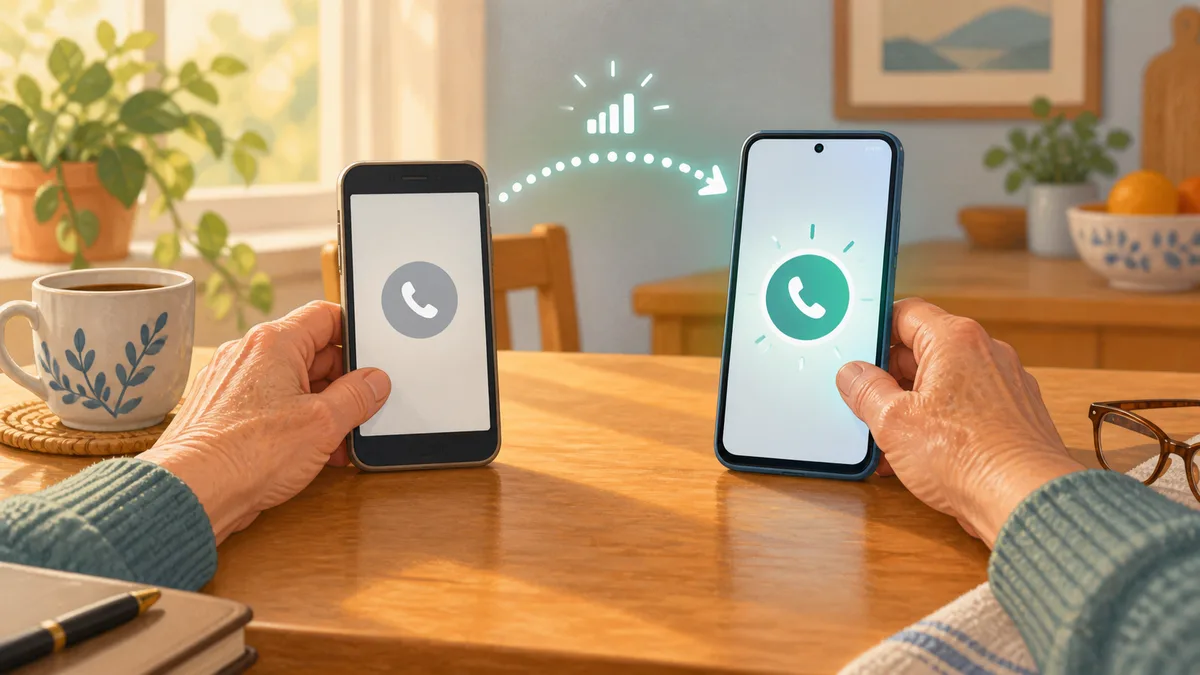
Say your shiny new iPhone arrives, but there is no little tray for the familiar plastic SIM card. If you're wondering how to transfer eSIM and phone number to new iPhone, the good news is that the number usually moves wirelessly while both phones sit beside you.
An eSIM, or embedded SIM, is the digital version of the small card that connects your phone number to your carrier. You are moving the service, not copying your contacts or photos.
Keep the old iPhone until one test call works
This is the most useful step: do not erase, trade in, or mail away the old phone yet. Keep both iPhones nearby, plugged in if possible, unlocked, signed in to the same Apple Account, and connected to Wi-Fi with Bluetooth turned on.
During setup, choose the phone number Apple offers and approve the transfer on the old iPhone. If setup is already finished, open Settings > Cellular > Set Up Cellular or Add eSIM, then choose your plan or tap Transfer From Nearby iPhone.
Follow the prompts and wait. Apple says that when the plan activates on the new iPhone, the old SIM stops working. Make a call from the new phone before you celebrate—or wipe anything.
When the easy transfer does not appear
Quick Transfer only works when your carrier supports it. Apple currently says both iPhones should have iOS 18.4 or later, be nearby, have Bluetooth on, and be signed in to your Apple Account. That software requirement is an easy one to miss.
I checked Apple's current menu path, and there is a useful escape hatch: a banner saying Finish Setting Up Your Carrier's Cellular Plan sends you to the carrier's website. Your carrier may instead provide a QR code, an app, or direct activation.
Moving from an Android phone can also require the carrier, although Apple says some carriers and phone makers support direct transfers. If your number is absent from the list or activation stalls, call the carrier using the number on its official website—not a number from a surprise text.
What this move does not bring along
An eSIM transfer moves cellular service. Your photos, messages, apps, and saved passwords come over through Apple's separate device-transfer or backup process.
Before handing over the old phone, it is worth doing the same kind of account check covered in our guide to securing an account before changing phones. You can also review where your iPhone keeps previous passwords and make the screen easier to read with the Clear or Tinted display setting.
Keep the old phone close, follow the prompts, and test one call—you've got this.
Official sources
- Apple Support: Set up eSIM on iPhone
- Apple iPhone User Guide: Set up cellular service on iPhone