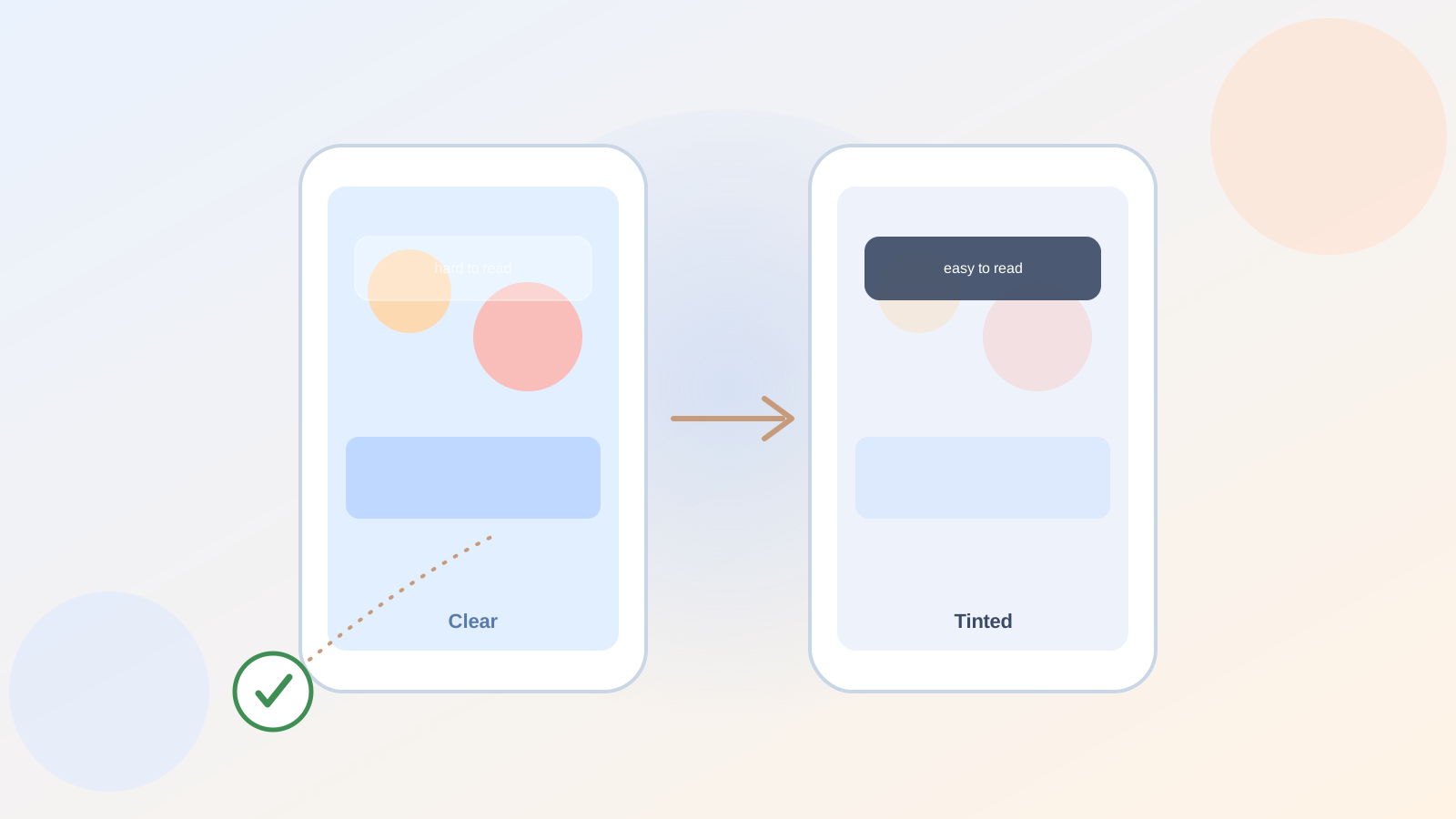
Say you updated your iPhone a while back and ever since, the little panel behind your notifications and search bars looks almost like frosted glass you can see straight through. Nice to look at, maybe, but not always easy to read against a busy photo or a bright background.
I noticed it myself trying to read a text notification over a beach photo and squinting for a second longer than I should have needed to.
Turns out Apple heard the same complaint from a lot of people, and building on that see-through "Liquid Glass" redesign, they quietly added a fix.
Where the iPhone Liquid Glass Clear Tinted setting actually lives
Here's the one thing worth doing first: open Settings, tap Display & Brightness, then tap Liquid Glass. You'll see two options sitting right there, Clear and Tinted.
Tap each one and watch your screen change in real time before you commit. That's it — no restart, no hidden menu, no accessibility deep-dive required.
What Clear and Tinted actually change
Apple describes it plainly right in that settings screen: Clear is more transparent, letting whatever's behind it — a photo, a colorful app — show through. Tinted adds more opacity and more contrast, so text and icons sit on a steadier background.
If you're the type who finds busy wallpapers behind your notifications distracting, Tinted is the one to try first. If you like the glassy look and your eyes are fine with it, Clear stays the more decorative option.
Why this setting showed up in the first place
This wasn't there when the glass look first arrived. Apple rolled out the redesign in iOS 26, then added the Clear/Tinted choice a bit later in the iOS 26.1 update, after plenty of feedback that the transparency made some screens genuinely harder to read, especially for anyone who relies on higher contrast to see comfortably.
If your Settings app doesn't show a Liquid Glass entry at all, that's usually a sign you're still on an older version. A quick trip to Settings, General, Software Update will get you caught up.
The one honest limitation worth knowing
Here's the detail that surprised me: switching to Tinted doesn't touch every glassy element on your phone. It mainly affects things like your Notification Center and certain search bars. Some other translucent touches elsewhere in the system stay the same either way, so don't expect the whole phone to transform.
Still, for the notifications and search bars you look at dozens of times a day, that one small change can make a real difference.
If you've been meaning to tidy up other iPhone display habits, our guide on looking up an old password in the Passwords app covers another easy-to-miss Settings feature, and if translated calls and captions sound useful too, iPhone Live Translation for calls, FaceTime, and Messages is worth a look. For another small comfort upgrade, iPhone's Hold Assist feature waits on hold so you don't have to.
Either way, that too-see-through look isn't something you have to just live with anymore — the fix is two taps away.