Digital Life

How to Secure Your Google Account Before You Change Phones

Published July 28, 2026

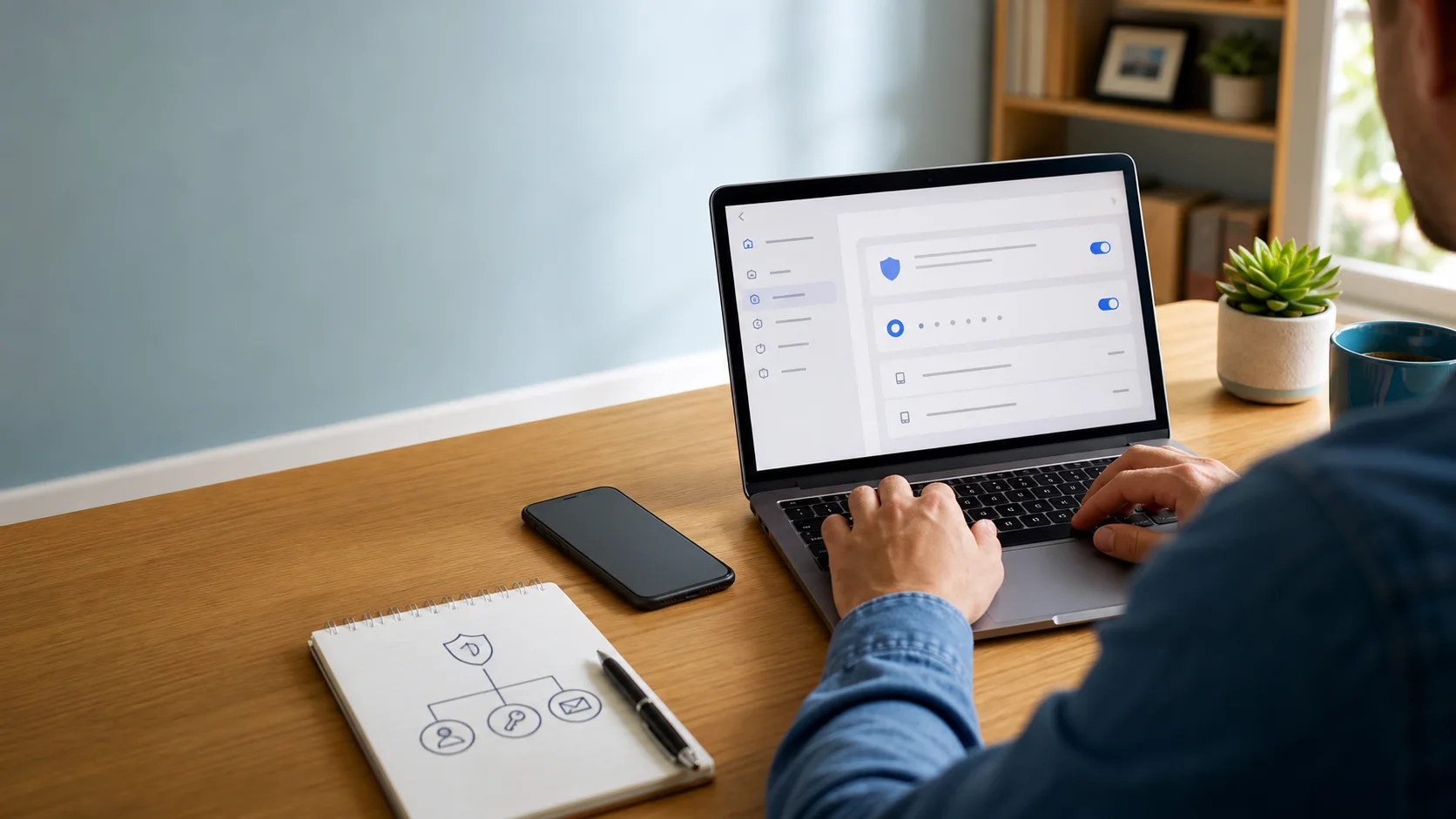
Person reviewing account security settings on a laptop with a new phone on the desk

Before changing phones, open your Google Account’s Security Checkup, confirm your recovery phone and email, review devices signed in to your account, and make sure you have a second way to complete 2-Step Verification. Save fresh backup codes somewhere you can reach without the old phone, then remove the old device only after the new one works. This takes about 10 minutes and greatly lowers the chance of an avoidable lockout.

Start with Google Security Checkup

Go to Google’s Security Checkup while you can still sign in on your current phone or a familiar computer. It brings together the settings that matter most during a device switch: recovery information, recent security activity, signed-in devices, and sign-in methods.

Work through the prompts slowly. Look for a recovery email address you still control and a recovery phone number that can receive messages. If either one is old, replace it before you change devices. Recovery information is not merely a formality; Google may use it to help verify that an account belongs to you when a sign-in looks unusual.

Do not use an email address that depends on the very Google account you are trying to recover. A separate personal email account is usually the safer choice. Google’s account security help explains how recovery information and security checks fit together.

Review every device that is signed in

In the Security section, open Your devices and inspect the list. You should recognize your current phone, computer, tablet, and any device you intentionally use. Click an entry you do not recognize to see more details, and sign it out if it is not yours.

Some entries can look unfamiliar at first. A browser session may be shown with a device model, location, or last-used date that is not perfectly precise. Before signing out, think about work computers, older tablets, or browsers you use in another room. If you still cannot identify it, change your Google password and review recent security activity as well.

This is also a good moment to retire an old phone you gave away, sold, or stopped using. But wait until the replacement phone is fully set up and tested before removing the current one. Keeping one known, working device signed in gives you a valuable recovery path if setup goes sideways.

Set up a sign-in method that will survive the move

Open 2-Step Verification in your Google Account. The goal is simple: do not let your only second step live on the phone you are about to erase, trade in, or lose access to.

Google may offer several sign-in methods, including Google prompts, an authenticator app, security keys, passkeys, and backup codes. Availability can depend on your device and account. Google’s 2-Step Verification guide has the current setup instructions and explains the options Google supports.

For most people, a sensible setup includes more than one recovery route. For example, you might use a passkey or Google prompt on your everyday device and keep backup codes in a secure place. If you use an authenticator app, make sure its transfer or backup process is complete on the new phone before wiping the old one. Never read a verification code, backup code, or recovery link to someone who contacts you unexpectedly—legitimate support will not ask for it.

Passkeys can be convenient because they use your device’s screen lock, such as a fingerprint, face unlock, or PIN, instead of a password typed into a site. They are not magic, though: make sure you understand where the passkey is saved and that you still have another recovery method. Google’s passkey help page is worth checking if you want to add or manage one.

Generate new backup codes and store them carefully

Backup codes are one-time codes that can help you sign in when your usual second step is unavailable. In 2-Step Verification settings, generate a fresh set before switching phones. Store them in a password manager’s secure notes area, a locked paper file, or another place that is not only on the phone you are replacing.

Treat these like spare house keys. Do not email them to yourself in plain text, put them in a public notes app, or save a screenshot in an unlocked photo library. If you ever use a code, generate a new set afterward so you know exactly which ones remain valid.

Your password manager deserves a quick check, too. Confirm that you know its main password and that any emergency or recovery method is current. A phone change is inconvenient enough without discovering that your passwords are trapped behind an untested sign-in flow.

Move to the new phone, then test before erasing the old one

Set up the new phone using its normal transfer process. Once it is ready, sign in to your Google Account and test the things you will actually need: Gmail, Google Photos, contacts, and a fresh sign-in to account settings. If you use an authenticator app or Google prompts, test a 2-Step Verification request on the new phone while the old phone is still available.

Keep the old phone powered on until those tests work. Then return to Your devices and sign out of the old phone if you are selling, recycling, or giving it away. Finally, use the manufacturer’s documented reset process to erase it; signing out of Google alone does not remove your personal files from the device.

This same pause-and-test approach helps with other digital transitions. When you are setting up a new routine or a new tool, a small written checklist is more reliable than trusting memory. Our guide to using ChatGPT Voice for an action plan shows a simple way to turn a spoken plan into a checklist without sharing sensitive details.

A quick security checklist for later

You do not need to wait for a new phone to do this review. Put a brief Security Checkup on your calendar a couple of times a year, especially after a lost device, a password-manager change, or a new recovery email.

  • Recovery phone and email still work.
  • Every signed-in device is familiar.
  • At least two sign-in or recovery methods are available.
  • Backup codes are current and stored securely.
  • Your password manager is accessible on a second device.

Good security is mostly about reducing single points of failure. The same practical habit applies to everyday preparedness: our basic family emergency kit checklist is another example of keeping essentials ready before you need them. For your Google Account, finish the review before the phone swap, verify the new setup, and only then let the old device go.