Say you wish your email and calendar handed you one simple morning to-do list instead of two separate messes to dig through. That's basically what Google just built. Here's how to turn on Gemini daily brief, a standing summary Gemini puts together for you automatically each morning.
What it actually is
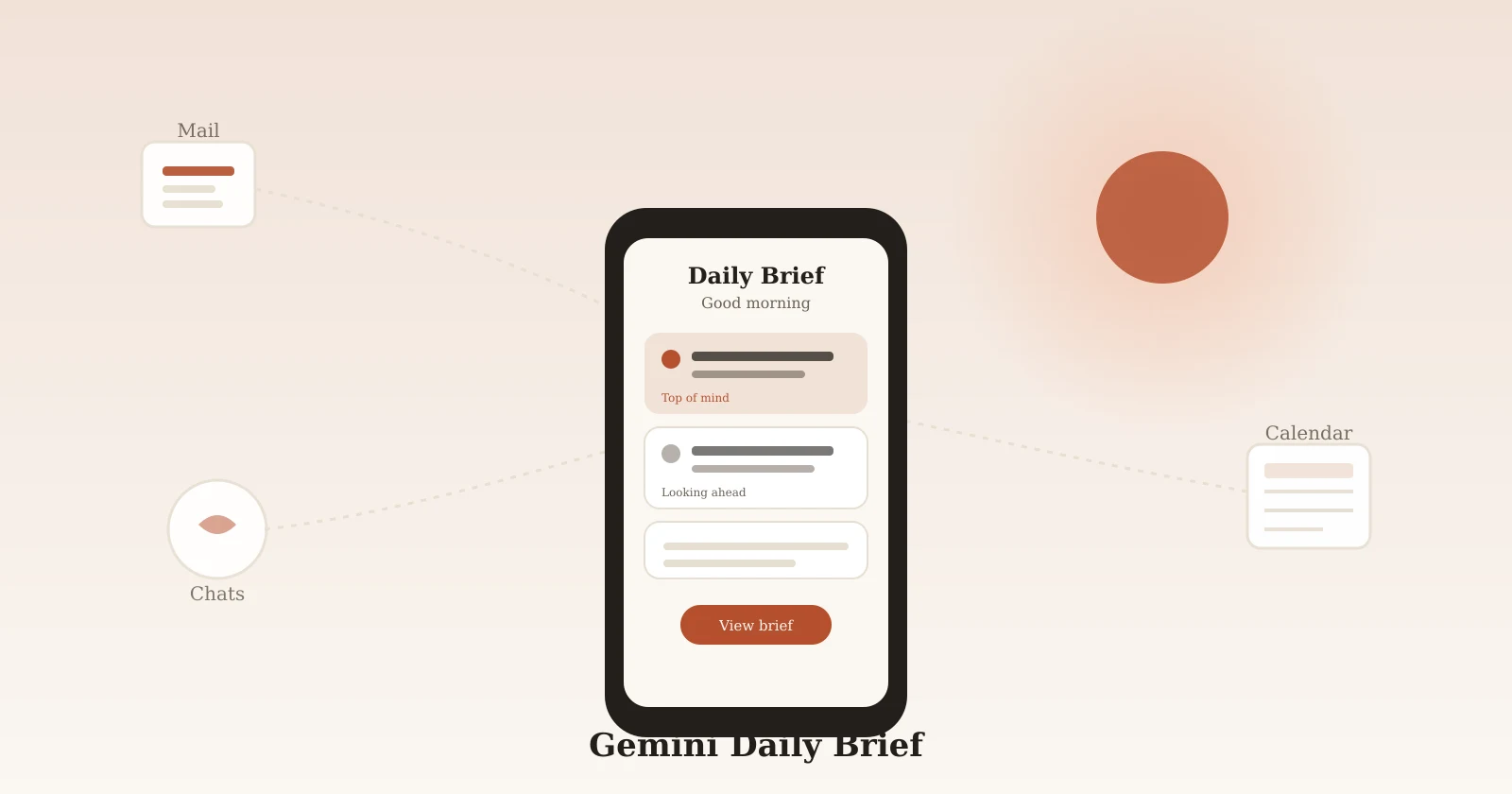
Unlike typing a question into Gemini, the daily brief shows up on its own. According to Google's Gemini Apps Help Center, it scans your Gmail and Calendar plus your recent Gemini chats, and organizes what it finds into "Top of mind" (a bill due today, a meeting needing prep) and "Looking ahead" (nudges toward goals you've mentioned before).
Who can actually get it
This is the part worth checking before hunting for a button that isn't there. You need:
- To be 18+ and located in the US
- A personal Google Account — work, school, and supervised accounts don't qualify
- A Google AI Plus, Pro, or Ultra subscription (the free tier doesn't include it)
- Personal Intelligence turned on, meaning Workspace connected and Memory enabled
Google is rolling this out gradually, so meeting every requirement doesn't guarantee you'll see it today — there's no manual way to force early access.
Turning it on
- Sign in to Gemini with your personal account.
- In Settings, connect Google Workspace and turn on Memory — both are required, not just one.
- Open the sidebar and click Daily brief.
- Give it a day; your first brief may be thin until it has some chat history to draw from.
This is the practical step worth doing today if you meet the requirements above: check Settings, confirm both toggles are on, then look for the sidebar option.
Using what's in your brief
Each item lets you chat about it for more context, mark it complete or dismiss it, or click "More" to see exactly which email or event it came from. That source-check is genuinely useful — if something looks off, click through and see for yourself before acting on it.
Fixing something wrong or turning it off
There's no edit button — just dismiss a wrong item and leave feedback if you want. Stale items, like a meeting that already happened, typically stop reappearing on their own. To turn the whole feature off without losing Workspace or Memory (which power other features too), look for the Daily brief toggle specifically rather than switching off Personal Intelligence entirely.
A limitation worth expecting
The "Looking ahead" section only knows what you've actually told Gemini in past chats — it won't infer long-term goals from your calendar alone. If your first few briefs feel thin on suggestions, that's normal, not broken; it improves as you use Gemini for more planning conversations.
Pair it with a security check
Since this reads directly from your inbox and calendar, it's worth treating your account's security the same way you'd treat any tool with that level of access. Our guide on securing your Google account before you change phones covers the same account-hygiene basics. If you'd rather build something similar in ChatGPT, our guide on setting up a weekly planning reminder shows the comparable approach there, and our piece on checking who's logged into your ChatGPT account covers the same verify-before-trust habit for that assistant.
Official sources
- Google Gemini Apps Help Center: Get started with your daily brief in Gemini Apps
- Google: Gemini Daily Brief overview and FAQ