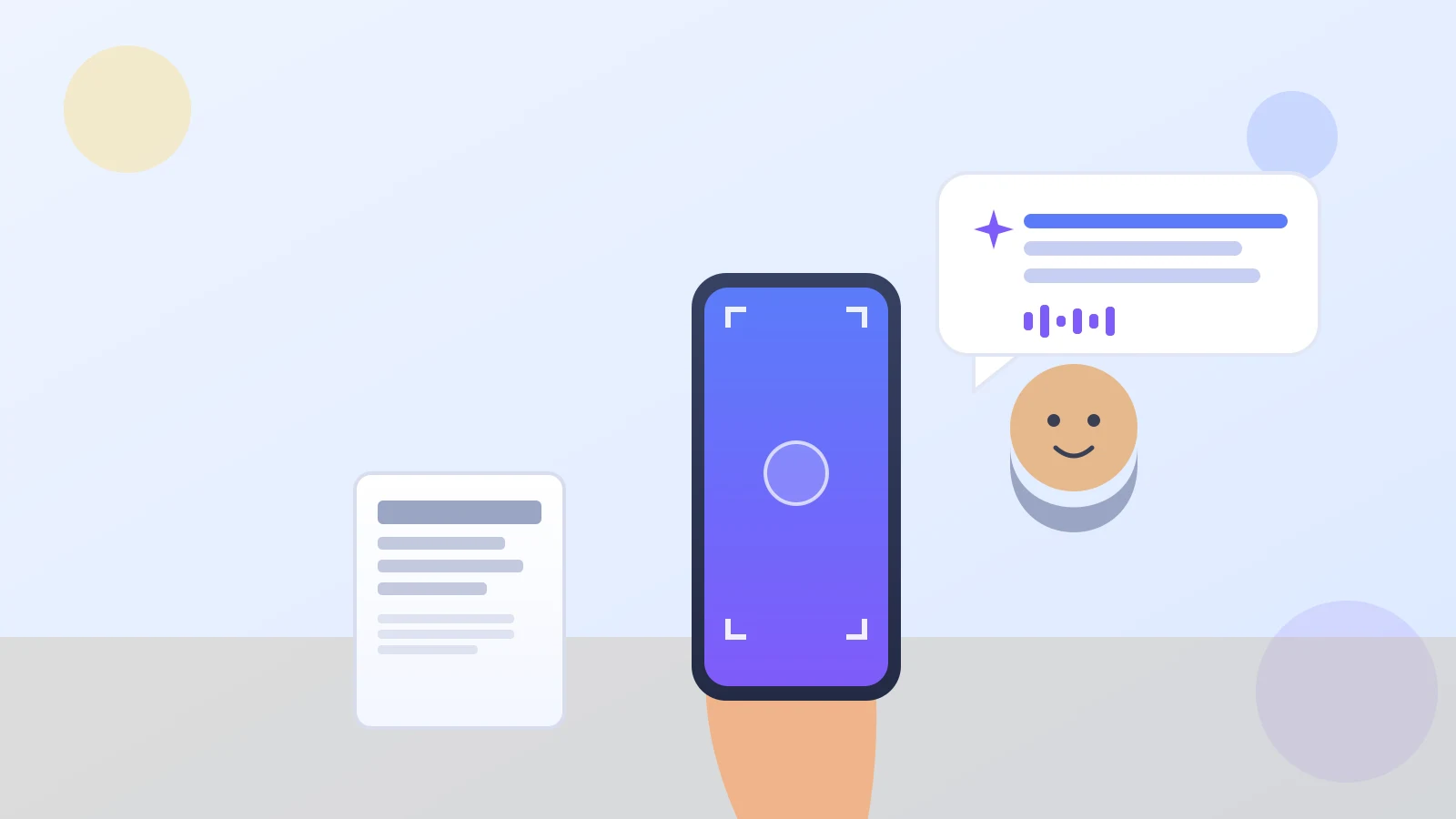
Say you're standing in a dim restaurant trying to read a menu, or squinting at a food label to check the sodium content, and the print is just too small and the light is just too low. What if you could just hold up your phone and have it read the scene to you, out loud?
That's exactly what Google just rolled out, and it's worth knowing about.
What Gemini Live's new Guided vision feature actually does
The feature is called Guided vision, part of Gemini Live — the live, conversational mode of Google's Gemini AI (AI just means software trained to recognize patterns and respond in natural language) where you talk to your phone and it talks back.
With Guided vision on, you share your camera view with Gemini Live and it describes what's in front of it out loud. Google built it with the blind and low-vision community, for moments like reading a food label, ordering off a dim menu, or figuring out what a household object is.
The most useful part: it talks you into the right shot
This is worth knowing first. If your camera isn't lined up quite right — too far, too blurry, off to one side — Guided vision doesn't just fail silently. It gives spoken directions to fix it: pan left, move closer, center the object, until it can actually see enough to answer you.
That back-and-forth is what sets it apart from just snapping a photo and asking "what is this." It coaches you toward a useful answer instead of leaving you guessing.
How to turn it on
Per Google's own September 2026 Android announcement, Guided vision is rolling out to phones on Android 9 and up, where Gemini is available. Two ways to reach it:
- Open Settings > Accessibility, find Guided vision or a related Gemini shortcut, and assign it to a shortcut like a volume-key hold, following Android's standard accessibility shortcut setup.
- Or turn it on from the TalkBack menu or inside Gemini App Settings, if you already use TalkBack, Android's built-in screen reader.
Once set up, say something like "Hey Google, share my camera" or open Guided vision from Gemini Live, point the camera, and start talking.
One thing to know before you rely on it
It's still rolling out gradually, so you may not see it yet — that's not a sign anything's broken. And like any AI description, it's meant to help you get the gist quickly, not replace careful reading of anything that really matters, like medication dosages. For that, still double-check with a magnifier, a family member, or a pharmacist.
A small feature that solves a real everyday problem
This is a nice, concrete example of what AI can actually do day to day — no typing, no prompts, just your camera and your voice. It joins the same wave of accessibility-first Android features as Pixel's sign-to-text translation, which turns American Sign Language into text for Deaf users. And if scam calls worry you more than menus, our guide on spotting Social Security impersonation scams is a good companion read.
Either way, Guided vision only works when you choose to share your camera — nothing runs in the background without you asking.