Say you've got a dozen browser tabs open at once, a recipe, two appointment confirmations, a grandchild's school newsletter, and a form you still need to finish. They're all squeezed into that top row, shrunk down to bare icons, and you can't tell which one is which without clicking through each one.
Chrome just rolled out two features built for exactly that problem: a Chrome vertical tabs layout that moves your tabs into a readable sidebar, and a reading mode that strips a cluttered webpage down to just the text.
The one step worth trying first
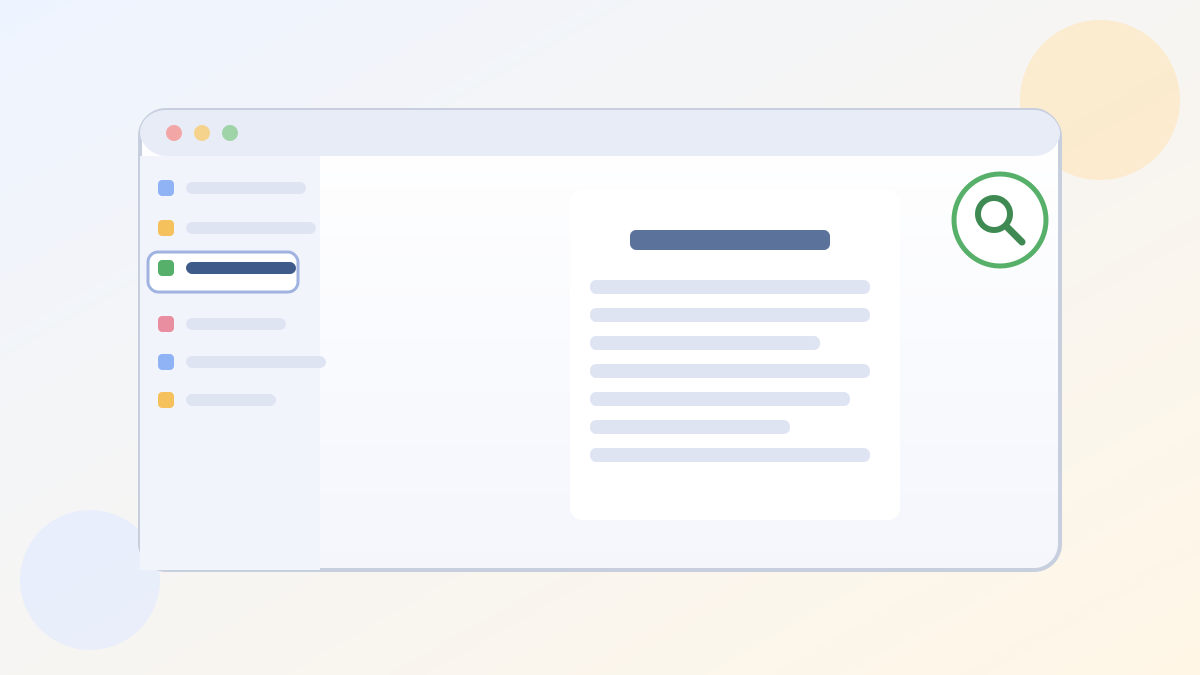
Right-click anywhere on Chrome's tab bar at the top of the window, then choose "Show Tabs Vertically." Your tabs will shift to a column along the left side of the window, each one now wide enough to show its full page title instead of just a tiny icon.
That one change alone makes it far easier to spot the tab you actually want, especially once you've got more than five or six open. To switch back, right-click the sidebar and choose "Show Tabs Horizontally."
What "reading mode" actually does
Reading mode is a second, separate feature: right-click on any article or webpage and select "Open in reading mode," and Chrome pulls just the text and images into a clean, single-column panel, with ads, sidebars, and pop-ups stripped away.
Chrome's own product team describes it as designed for deep focus, and it's genuinely useful for long news articles or recipe pages that bury the actual content under banners. You can also pick a different type size or color theme, and on a computer, have the text read aloud to you.
The one catch I ran into
I tested reading mode on a page that was mostly a photo gallery with just a caption or two, and Chrome didn't have much text to work with, so the reading-mode panel came out mostly blank. It works best on pages that are genuinely article-like, a news story, a blog post, a set of instructions, not image-heavy pages.
Also worth knowing: vertical tabs is a per-window setting, so if you regularly open several separate Chrome windows, you may need to turn it on in each one rather than just once for your whole browser.
Why this pairs well with other browser habits
If you've already started using Chrome's PDF annotation and Save to Drive features to mark up documents in the browser, vertical tabs makes it easier to find that PDF tab again later in a crowded window. And if Gemini Spark's Chrome auto-browse feature is handling some of your logins already, a tidier tab bar means less scrolling to find the account page it just opened. For keeping your logins straight in general, how the iPhone's Passwords app remembers your old passwords is worth a look too.
Either way, neither feature requires an extension or a settings dive, just two right-clicks, and a browser window that finally looks as organized as you meant it to be.
Official sources
- Google, Get more done with new vertical tabs and immersive reading mode in Chrome
- Google Chrome Help, Use reading mode in Chrome - Computer