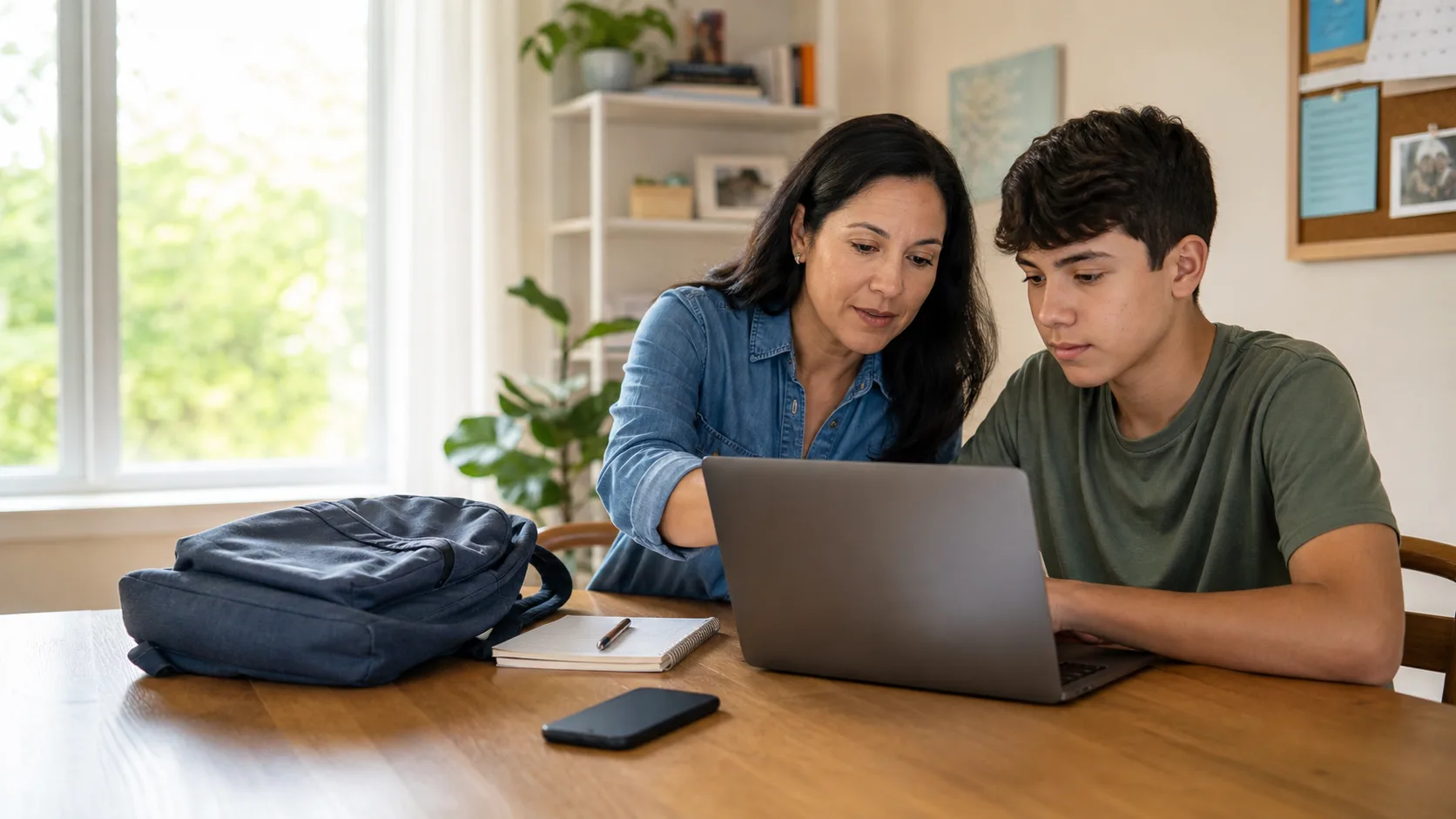
Before a child or student uses a new school laptop, install the latest updates, protect each important account with a unique password and multi-factor authentication (MFA), verify recovery options, and set a screen lock. Then check the school’s rules for device management, acceptable use, and which accounts belong on the device. This takes about 15 minutes and protects the accounts that matter without trying to bypass the school’s own security setup.
Start with the school’s rules and the laptop’s updates
If the laptop came from a school, follow its setup instructions first. It may already be enrolled in a school management system, have required security software, or need a school account before anything else works. Do not remove profiles, filters, antivirus software, or other school-installed tools. Those are policy and support decisions for the district or school, not settings to work around at home.
Whether the laptop is school-issued or personally owned, connect it to a trusted home network and run the operating system’s update tool. Install the available system, browser, and app updates, then restart if requested. Updates often include fixes for security problems, so doing this before the first assignment is easier than postponing it until the device is full of accounts and files.
Also check that the device is using the correct date, time, and time zone. An incorrect clock can interfere with sign-ins and MFA codes. If you are setting up a shared household computer, create a separate standard user account for the student when the operating system and school policy allow it. That keeps personal browser history, downloads, and saved logins from being mixed with someone else’s.
Give every important account a unique password
The school email account is usually the key to classroom apps, assignment resets, and messages from teachers. It deserves a password that is not reused anywhere else. The same goes for the family email account that may receive recovery messages. Reusing one password means a breach at an unrelated site can put a school account at risk.
Use a reputable password manager if your household is ready for one. It can create long, unique passwords and store them without asking a student to memorize every string. If you are not using a password manager, choose a long passphrase that is hard for other people to guess and never share it in a text, note on the laptop, or class chat. CISA recommends long, random, and unique passwords, and notes that a password manager can help create and remember them (CISA: strong passwords).
Avoid using a child’s name, birthday, school mascot, or a familiar sports team. Those details are easy for acquaintances to find or infer. If a student is old enough to manage their own password, explain where the recovery method is and what to do if a sign-in looks unusual—without asking them to share the password with friends.
Turn on MFA and save the recovery path
MFA adds a second check after a password, such as an authenticator-app code, approval prompt, security key, or text message. It is especially valuable for school email, the family email account, and any account that stores payment or personal information. CISA recommends turning on MFA wherever it is available (CISA: turn on MFA).
Open the security settings for each priority account and look for “two-step verification,” “multi-factor authentication,” or similar wording. Follow the account’s official instructions. An authenticator app or security key can be a stronger choice than text messages when offered, but use the method your household can reliably access. A security feature that leaves everyone locked out during a school morning is not a finished setup.
Next, review the recovery email address and phone number. They should belong to a parent, guardian, or student who is authorized to use them and will keep them current. Store backup codes in the password manager or another secure family location, not in a photo album or plain document on the laptop. For a related account check before switching devices, see how to secure a Google account before changing phones.
Set a screen lock and practice a safe sign-out
Turn on a PIN, password, or approved biometric screen lock, and set the display to lock automatically after a short period of inactivity. The exact menu differs by operating system, but the goal is simple: a roommate, visitor, or someone who finds a misplaced laptop should not open an already signed-in school account.
Have the student practice locking the screen whenever they leave the table, library desk, or classroom. They do not need to sign out of every app for a two-minute break, but they should sign out of school and personal accounts before handing the device to someone else or using a public computer. On shared home devices, do not select “remember me” for school accounts unless the student has their own protected user profile.
If the laptop will travel, avoid putting a full name, address, phone number, or account username on the outside. Keep the serial number and school help-desk contact in a secure family file.
Keep school and family accounts separate where permitted
Use the school account for school platforms and the personal or family account for personal services. This makes it clearer which files, notifications, and recovery options belong to each context. It can also help avoid accidentally uploading a personal document to a classroom service or using a school-managed browser profile for unrelated shopping and social accounts.
That boundary has limits: some schools require a managed account or browser profile for coursework, and their policy controls. Ask the school’s technology office when in doubt instead of adding workarounds. For young students, a parent or guardian can keep a brief inventory of the accounts used for school and the official support page for password resets.
Save coursework in the school-approved location, not a school account used for family tax documents, identity documents, or other sensitive household files. On a shared device, check the active browser profile before opening email or a drive folder.
Do a three-question test before the first class
Once the setup is complete, test it while an adult is available to help. First, can the student sign in to the school account and required learning portal? Second, does MFA work with the chosen method? Third, can the authorized adult find the recovery method or support contact without guessing a password?
If the answer to any question is no, fix that one issue before installing extra apps or changing more settings. Keep the school’s help-desk page handy and use its official reset process. For another quick habit that protects account access, read how to review ChatGPT active sessions; the same principle applies: review where an account is signed in and remove access you do not recognize.
A secure first login is not about making a student responsible for every technical decision. It is about making account access deliberate: updated device, unique password, MFA, reliable recovery details, a locked screen, and school rules respected. Review these basics at the start of each school year or whenever the laptop, phone number, or recovery email changes.
Sources
- Cybersecurity and Infrastructure Security Agency: Use strong passwords
- Cybersecurity and Infrastructure Security Agency: Turn on MFA
