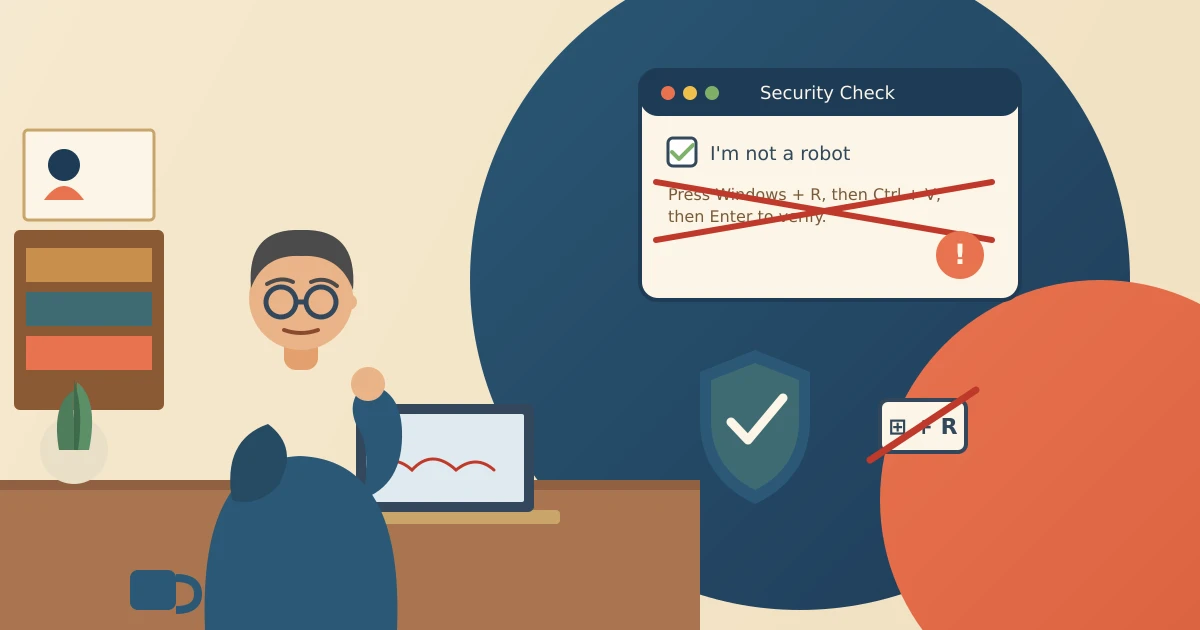
Say you're reading an article online and a box pops up: "Verify you're human." Fine, you've clicked a hundred of those. But this one says to press Windows key + R, paste something, and hit Enter. I only learned about this one recently myself, and here's how to tell a real captcha from a fake captcha scam: a real one never, ever asks you to type anything into your own computer.
The one rule to remember
A real CAPTCHA (that's the "I'm not a robot" checkbox or the pick-the-traffic-lights pictures) only asks you to click things on the web page. If a "verification" screen mentions Windows+R, Terminal, PowerShell, or "paste this to continue," it's fake. Close the tab and move on.
That's the whole test. No need to study the logo or the wording.
What's actually going on
The Federal Trade Commission has been warning about this one. The page quietly copies a hidden command onto your clipboard (the invisible place your computer stores whatever you last copied). Then it tells you to paste and press Enter.
So you end up running the scammer's command, which can download malware (software that spies on you) and grab saved passwords, bank logins, and the like. Security folks call it "ClickFix," because it invents a problem and asks you to "fix" it.
It's clever because it borrows trust from something familiar. We've all done so many real CAPTCHAs that we stop questioning them.
Where these tend to show up
Mostly on free-movie streaming sites, "cracked" software downloads, and smaller sites that got hacked — though a bad ad on a normal site can do it too. If a security check appears halfway through reading something, that mismatch is itself a clue.
If you see one
- Don't press any key combination the pop-up suggests. Close the tab. If it won't close, close the whole browser.
- Don't paste anything. To be safe, copy a harmless word like "hello" so the clipboard is overwritten.
- Go back to the site you wanted by typing the address yourself — same habit as verifying an unexpected invoice email. Don't use a "try again" button from the scam page.
- Report it at ReportFraud.ftc.gov.
If you already pressed Windows+R and pasted
Don't panic, but do these in order:
- Unplug from the internet. Turn off Wi-Fi or pull the cable. That cuts the malware's line home while you clean up.
- Run a full scan with Windows Security or a reputable antivirus, after updating it.
- Change your passwords from a different, clean device — your phone, say. Email and banking first, then anything that shared the same password.
- Turn on two-factor authentication (the extra code sent to your phone). Our Google Account security checklist walks through it.
- Watch your bank and card statements for a few weeks. If you already lost money, read our refund and recovery scam guide so you don't get hit a second time by someone "helping."
One thing I'd stress: reconnecting to the internet before the scan finishes gives the infection its connection back. If you're not sure the scan ran clean, keep that computer offline, change your important passwords from your phone, then scan again before trusting it.
A CAPTCHA proves you're a person by watching what you click — never by telling you what to type. Keep that one rule and this scam can't touch you.
Sources
- Federal Trade Commission: How to spot a CAPTCHA scam
- Cybersecurity and Infrastructure Security Agency (CISA): Recognize and Report Phishing