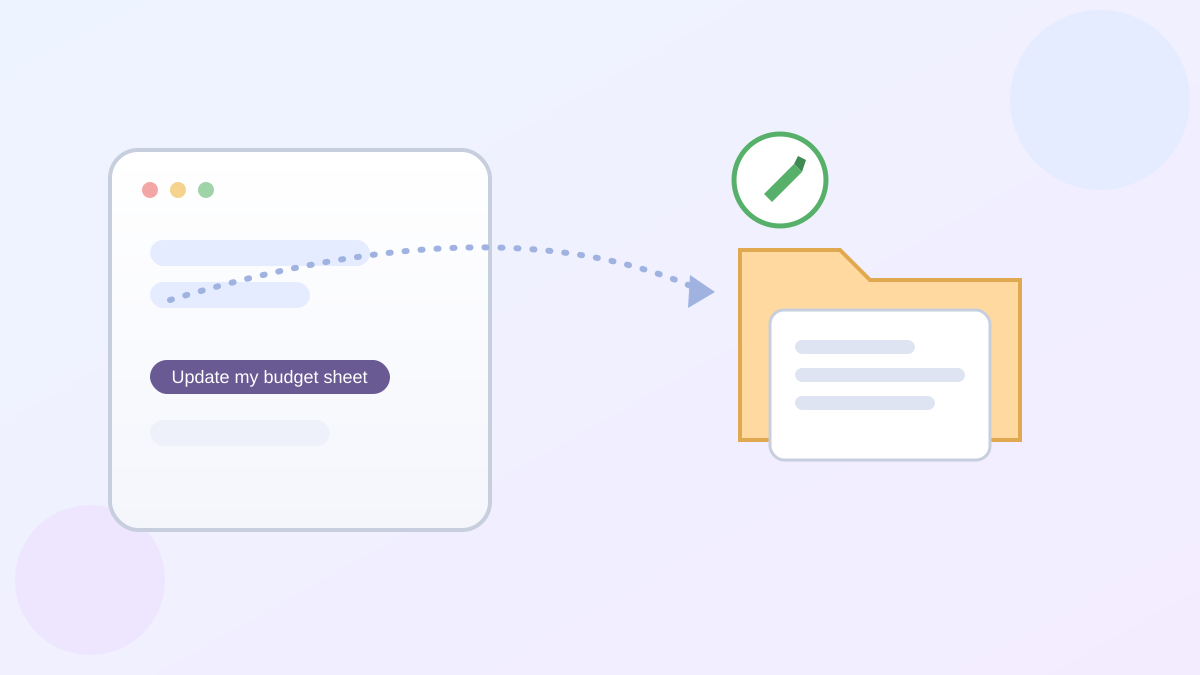
Say you've got a budget spreadsheet sitting in Google Drive, and you keep uploading that same file to ChatGPT every time you want help with it. I did this for months myself. Turns out you don't have to anymore.
What the ChatGPT Google Drive Library integration actually changed
As of August 13, 2026, OpenAI rolled out this Google Drive integration: your Drive files now show up right inside ChatGPT's Library, the same place your uploads and past chats live. Once you connect your Google account, ChatGPT can see your Drive folders directly — no re-uploading required.
The one useful step: connect it once
Here's the part worth doing today. Tap the + button next to where you type your message, choose Add from Library, and if you haven't linked Drive yet, you'll be prompted to connect your Google account. After that one-time step, any Drive file — a Doc, a Sheet, a Slide deck — can be pulled into a chat just by typing @ and its name, no uploading needed.
It can edit the real file, not a copy
This is the part that surprised me. In the past, if you asked ChatGPT to fix up a document, it handed you back a separate, disconnected version you had to copy over yourself. Now, when ChatGPT edits a Doc, Sheet, or Slide you've pulled in from Library, it changes the actual file sitting in your Drive. You can also still tap a button to open that same file in Google Docs, Sheets, or Slides directly if you'd rather finish up there.
A real limitation worth knowing
Here's the one thing that tripped me up when I tested this: it's a paid-plan feature only. Plus, Pro, Business, and Enterprise subscribers get it — if you're on the free version of ChatGPT, the Drive Library option simply won't appear yet, no matter how carefully you look for it.
A quick word on what's connected
Connecting Drive means ChatGPT can see whatever folders and files you give it access to, including things other people have shared with you. It's worth a quick look at exactly which folders you're exposing — you can review and adjust this anytime from your Google Account's connected-apps settings, the same place you'd check before switching phones.
The bottom line
Being able to hand ChatGPT a live link to your Drive instead of a fresh upload every time is a genuinely convenient shortcut, especially for anything you update often, like a family budget or a running to-do list. Our guide on organizing long-running work with ChatGPT Projects pairs well with this if you're juggling more than one ongoing document, and if privacy is on your mind, our guide on securing your Google Account covers exactly where those connected-app permissions live.
Official sources
- OpenAI Help Center: ChatGPT Release Notes (August 13, 2026 entry, "Google Drive is now in Library")
- 9to5Mac: ChatGPT subscribers can now open and edit Google Drive files from inside the chat